How to Set Up IPTV on BuzzTV Box – Server Line / MAC Server Configuration (2 Methods)
BuzzTV Box IPTV Setup is simple when you use a reliable provider like Stremzi, trusted by many users as one of the best IPTV services for stable and high-quality streaming. With access to 45,000+ live channels, 220,000+ VOD titles, 4K/8K Ultra HD support, anti-freeze technology, and 99.9% uptime, Stremzi gives BuzzTV Box users a strong streaming experience for live TV, movies, and series. This tutorial shows you how to configure your BuzzTV Box using both the Live TV section method and the Settings menu method. Follow the exact steps below to add your server line or MAC server details and connect successfully. You can also view our Pricing, read the FAQ, and explore more Tutorials for extra setup help.
Table of Contents
What You Need
- A valid Stremzi subscription
- A BuzzTV Box
- A stable internet connection
- The Portal URL from Stremzi
- Your device MAC address
Method 1 – Setup BuzzTV Box via Live TV Section
To set up IPTV on a BuzzTV Box through the Live TV section, open Live TV, choose Server Line or MAC Server, add a server, enter the portal details, and connect.
Step 1: Go to Live TV section
Navigate to the Live TV section on your BuzzTV Box. This is the quickest way to access the server setup area where you can add your IPTV service details directly from the main viewing interface.
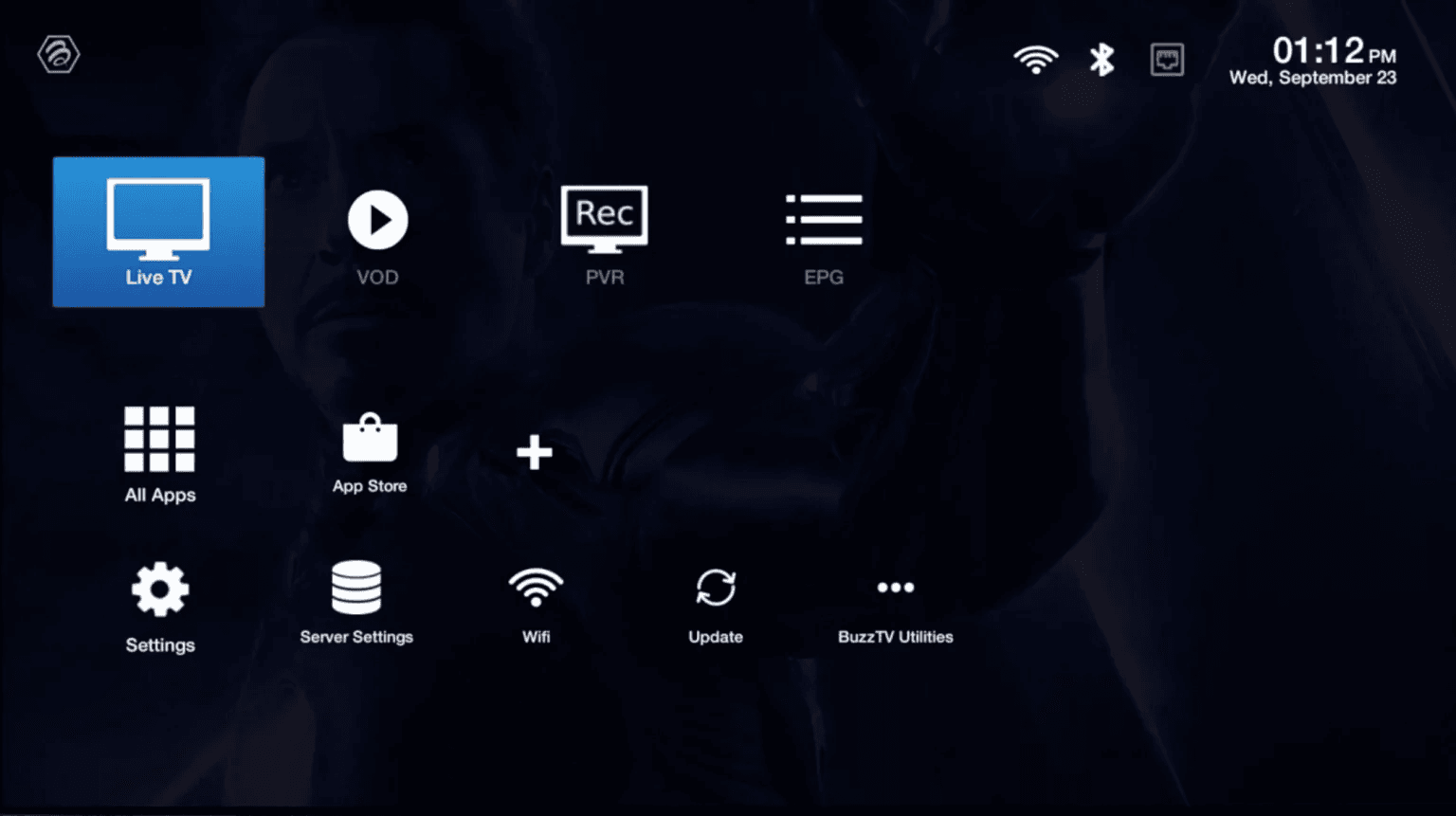
Step 2: Select “Server Line” or “MAC Server”
Choose either “Server Line” or “MAC Server” from the options. Depending on your preferred setup method or device menu version, either option can lead you to the area where you enter your IPTV connection details.

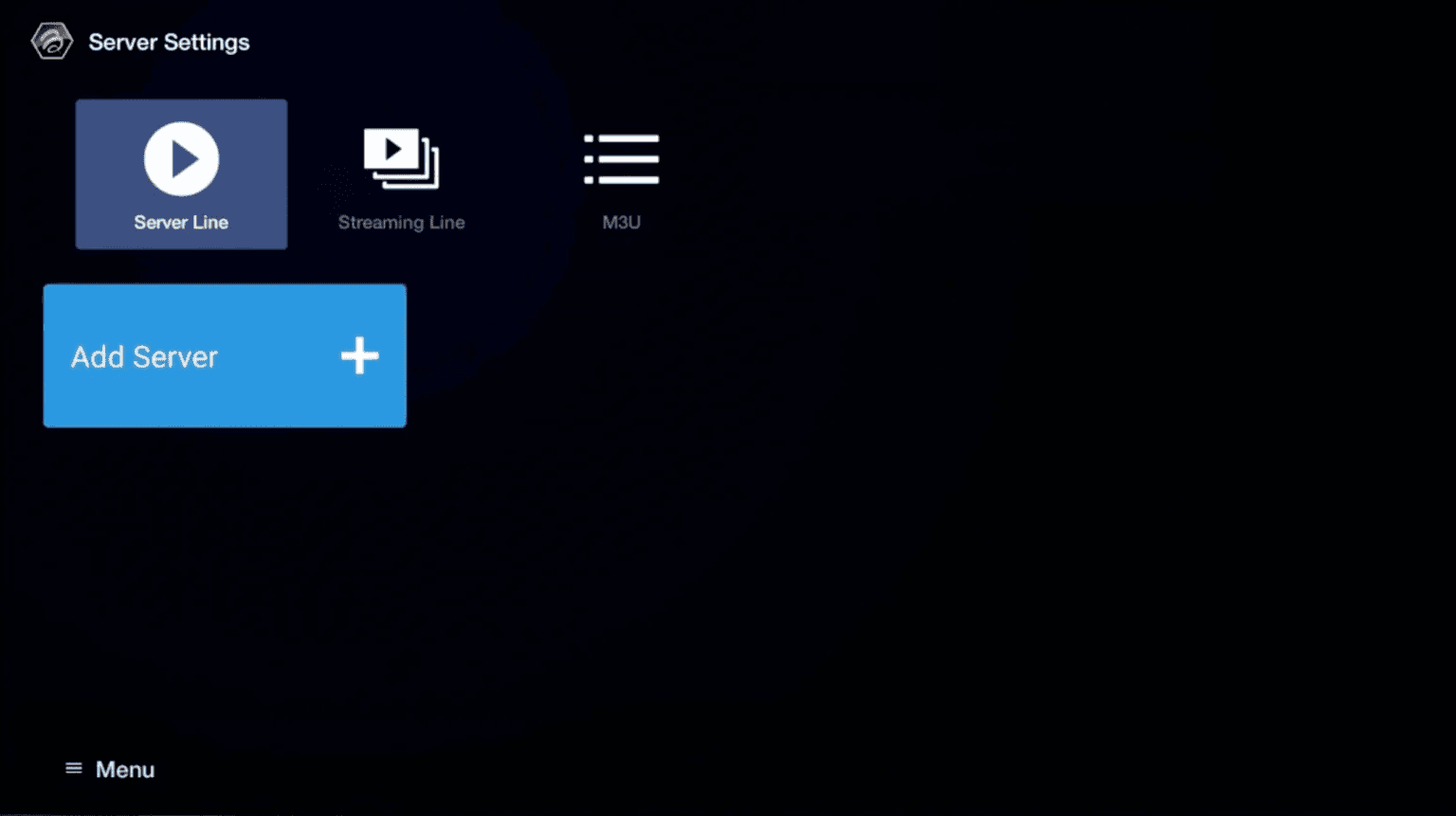
Step 3: Click on “Add Server” or “Add MAC Server”
Click on the “Add Server” or “Add MAC Server” option to proceed. This opens the form where you can enter your portal information and connect your BuzzTV Box to the IPTV service.
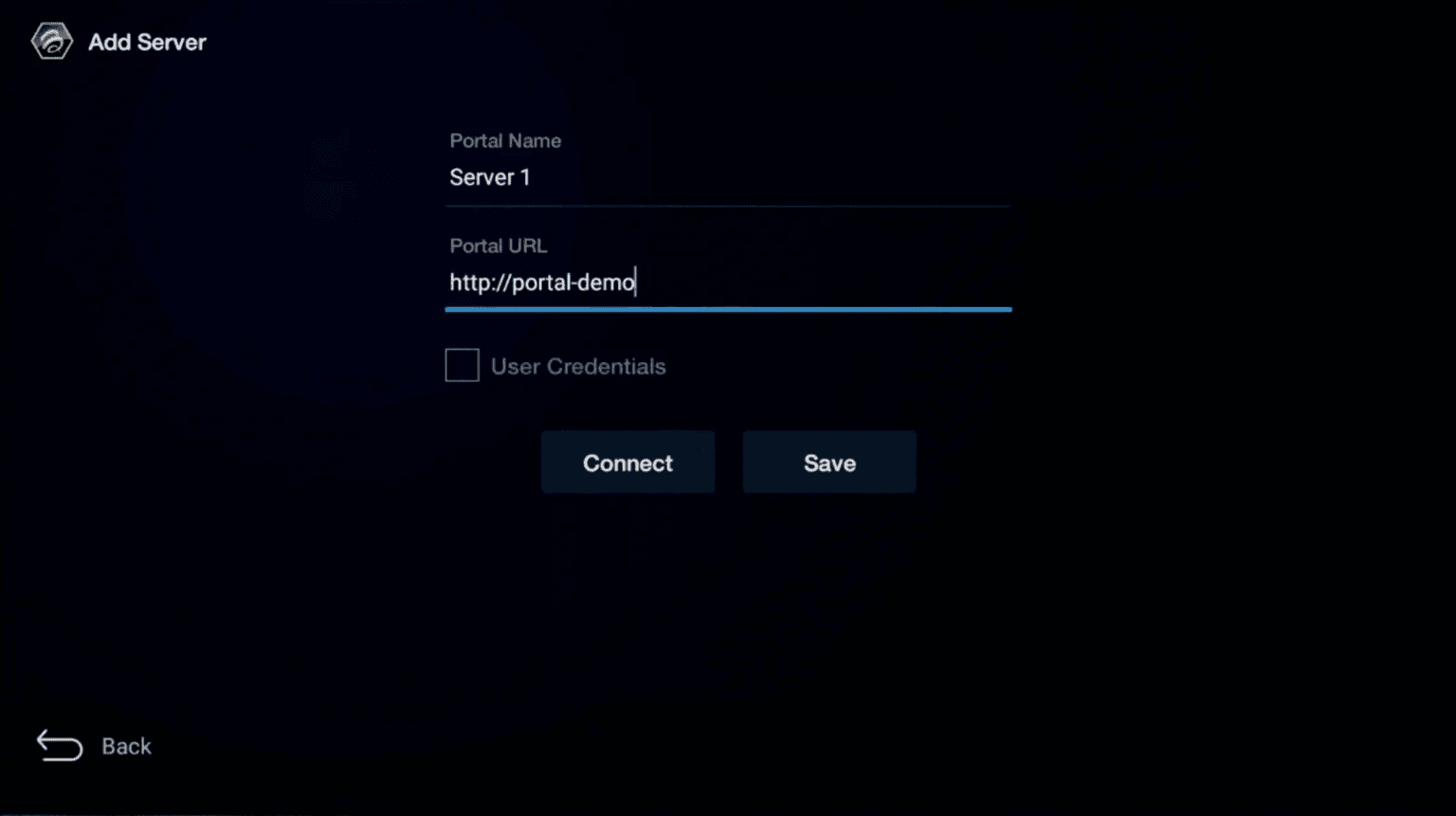
Step 4: Enter Portal Details
In the first box, enter “ANY NAME” as the Portal Name. In the second box, paste the Portal URL provided by us after subscribing. Then, click on “CONNECT” to finalize. Make sure the Portal URL is entered exactly as provided, because even a small typo can stop the connection from working correctly.
Note
After payment, submit the form with your device’s MAC address (you can find it at the bottom of your box. Look for a label that says “MAC” or “MAC Address”).
Congratulations!
You’ve now completed the setup of your BuzzTV Box for seamless streaming.
Method 2 – Setup BuzzTV Box via Settings Menu
To set up IPTV on a BuzzTV Box through the Settings menu, open Settings, go to Servers, enter your portal details, submit your MAC address, and connect.
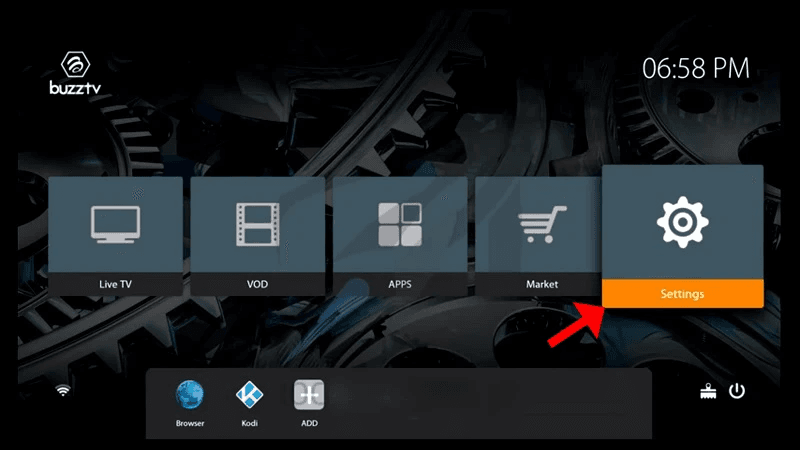
Step 1: On the main menu, click on “Settings”
Navigate to the main menu and select “Settings”. This is another easy way to access the server configuration area if you prefer not to use the Live TV section for setup.
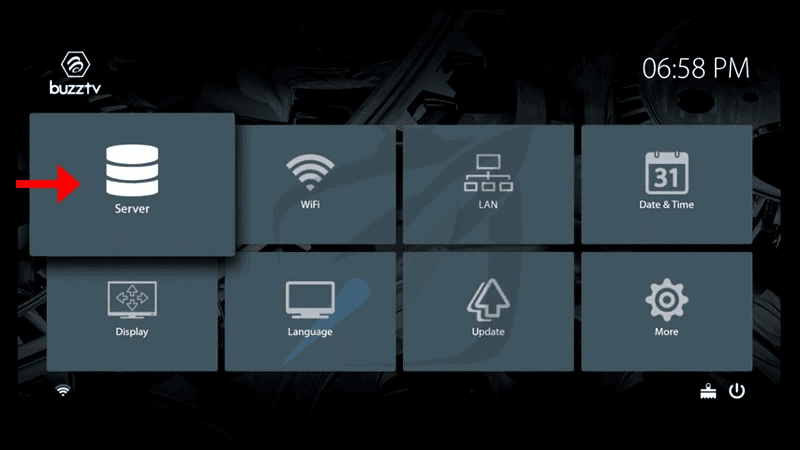
Step 2: Click on “Servers”
Click on “Servers” in the settings menu and proceed to the next step. This section allows you to add the server information required for your IPTV subscription.
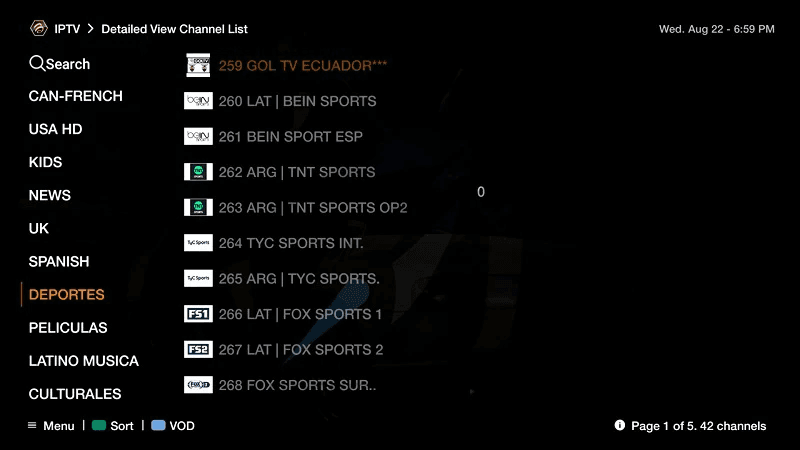
Step 3: Enter Portal Details
In the first box, enter “ANY NAME” as the Server Name. In the second box, paste the Portal URL provided by us after subscribing. Then, click on “CONNECT” to finalize the setup. Review the details carefully before confirming so the connection works on the first try.
Please note: After payment, submit the form with your device’s MAC address (you can find it at the bottom of your box. Look for a label that says “MAC” or “MAC Address”).
Note
After payment, submit the form with your device’s MAC address (you can find it at the bottom of your box. Look for a label that says “MAC” or “MAC Address”).
Congratulations!
You’ve now completed the setup of your BuzzTV Box for seamless streaming.
Need Help? If you’re facing issues, contact our support team on WhatsApp for assistance.
Troubleshooting Common BuzzTV Box Issues
If your BuzzTV Box is not connecting correctly, the most common causes are activation delays, incorrect portal details, missing server options, or device performance issues.
- MAC address not activating: Make sure you submitted the correct MAC address after payment and allow a little time for the activation to be completed.
- Portal URL not connecting: Re-enter the Portal URL exactly as provided. Check for spaces, missing characters, or incorrect formatting.
- Server Line option not showing: Restart the box, check for firmware updates, and explore both the Live TV section and the Settings menu to locate the correct server menu.
- Buffering or freezing: Test your internet speed, restart your router, and use a wired Ethernet connection for better streaming stability.
- App crashes or freezes: Restart the BuzzTV Box, clear the app cache if available, and update the firmware to improve overall performance.
Pro Tips for BuzzTV Box Users
To get the best performance from your BuzzTV Box, keep the device optimized, use a strong connection, and double-check the portal details during setup.
- Use wired Ethernet instead of WiFi for a faster and more stable IPTV connection.
- Keep your BuzzTV Box firmware updated for better compatibility and fewer setup issues.
- Use a VPN if your ISP limits or blocks IPTV traffic in your region.
- Clear app cache regularly to keep the device responsive and reduce loading issues.
- Restart the box after setup so the server configuration is fully applied.
Frequently Asked Questions
How do I find the MAC address on a BuzzTV Box?
You can usually find the MAC address on a label at the bottom of your BuzzTV Box. Look for a sticker that says “MAC” or “MAC Address”.What is the difference between Server Line and MAC Server?
Server Line and MAC Server are two BuzzTV connection options used to add your IPTV service. The exact naming may vary by firmware version, but both lead you to the server setup process.Can I use Xtream Codes on BuzzTV?
Some BuzzTV configurations may support other connection methods depending on the software version, but this guide focuses specifically on the Server Line and MAC Server portal setup process.Does BuzzTV support 4K streaming?
Many BuzzTV Box models support 4K streaming, but performance depends on the device model, internet speed, and the content quality provided by the service.How do I factory reset a BuzzTV Box?
You can factory reset a BuzzTV Box through the device settings menu. Keep in mind that a reset will remove saved server settings and require you to configure the device again.How can I get a 24h trial for BuzzTV?
Trial availability may vary. Visit our Pricing page or contact support to ask whether a 24-hour trial is currently available for BuzzTV Box setup.
Get Your Stremzi Subscription
Ready to stream on your BuzzTV Box? Get your subscription now and enjoy fast activation, premium channel access, and reliable IPTV performance.