How to Install IPTV Smarters Pro on iOS (iPhone, iPad, Apple TV) – Xtream Codes Setup
Install IPTV Smarters Pro on iOS with this simple guide for iPhone, iPad, and Apple TV. If you want a smooth way to watch live TV, movies, and series from your subscription on Apple devices, IPTV Smarters Pro is one of the easiest apps to set up. It works well with Xtream Codes login, which means you only need your name, username, password, and server URL to get started. For Stremzi users, that makes the setup quick and practical, even if you are not technical. Once the app is installed, your content can load in one place so you can browse channels, on-demand titles, and other sections from a clean mobile or tvOS interface.
Stremzi is a strong choice for iOS users because it is built for flexible streaming across multiple devices. With access to 45,000+ channels, 220,000+ VOD, and support for 4K/8K quality on compatible content and networks, it gives Apple users a premium way to stream on the go or at home. Whether you are using an iPhone for personal viewing, an iPad for travel, or an Apple TV for the living room, this tutorial walks you through the full process step by step. By the end, you should be able to download the app, enter your Xtream Codes details, wait for the connection to load, and begin streaming your IPTV content on iOS.
Table of Contents
What You Need
- An active Stremzi subscription
- An iPhone, iPad, or Apple TV
- A stable internet connection
- Your Stremzi login credentials: Name, Login, Password, and Server URL
- Access to the Apple App Store on your device
Step-by-Step Installation of IPTV Smarters Pro on iOS
Step 1: Download IPTV Smarters
Start by downloading IPTV Smarters app from the Apple Store through this URL: Download IPTV Smarters.
Or search for it directly on the App Store and install it on your iOS device.
This is the first and most important step in learning how to install IPTV Smarters Pro on iOS. Open the App Store on your iPhone, iPad, or Apple TV and search for the app if you prefer not to use the direct link. Once you find it, tap download and wait for the installation to complete. On Apple TV, the app may take a little longer to install than on iPhone or iPad depending on your connection speed.
Step 2: Open IPTV Smarters & Enter Login Details
After installing the app, open it and choose the Xtream Codes API login method.
- Click on Xtream Codes API (XC API).
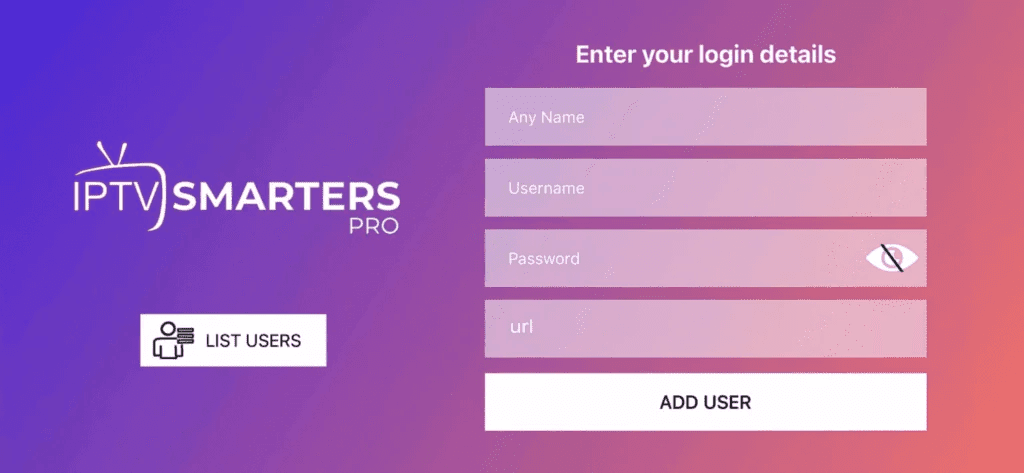
- Enter your details: Name, Login, Password, and Server URL.
- Click ADD USER.
For most Stremzi users, Xtream Codes is the easiest login option because it keeps the setup clean and simple. When the app opens for the first time, look for the XC API or Xtream Codes API option and select it. This login format is designed for users who receive direct subscription credentials rather than a playlist-only setup.
Step 3: Enter the Subscription Login Details
Use the login credentials provided after purchasing a subscription.
Click on ADD USER to proceed.
Make sure you enter your credentials exactly as they were sent to you. Even a small typing mistake in the server URL, password, or username can prevent the app from connecting. If possible, copy and paste the details on iPhone or iPad to reduce errors. On Apple TV, type carefully with the remote or use your linked Apple device keyboard if available.
Step 4: Wait a Few Seconds
The app will verify the details and load your IPTV content.
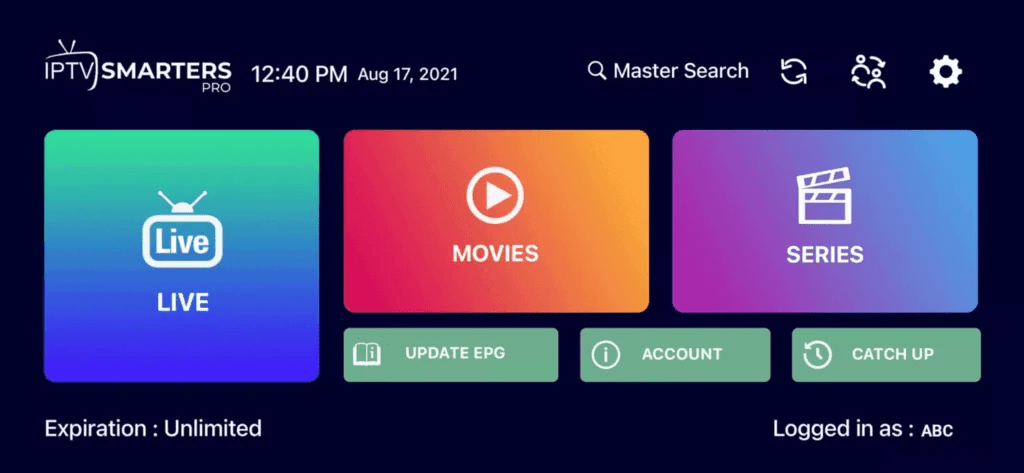
After you tap ADD USER, IPTV Smarters Pro will verify your account information and connect to the service. On the first login, the app may take a little time to load channels, categories, and on-demand sections. This is normal. Once the data is loaded, you can begin browsing your live content and VOD library from your iPhone, iPad, or Apple TV.
Alternative Apps
If you prefer other apps, you can use: (After installation, enter your IPTV subscription details to log in.)
- GSE IPTV (select Xtream Codes API)
- ELK Player
- IPTVX
Some iOS users prefer to compare a few apps before settling on one long term. IPTV Smarters Pro is usually the simplest starting point, but these alternatives can also work depending on your interface preferences and device type.
Troubleshooting Common Issues on iOS
1. The app is not showing in the App Store
Search again using the exact app name or use the direct Apple Store link provided above. Availability can sometimes vary by region or device type.
2. Xtream Codes login is not working
Double-check your Name, Login, Password, and Server URL. Most login errors happen because of a typo or an extra space in one of the fields.
3. The app keeps loading and does not show channels
Wait a little longer on the first login, then close and reopen the app. If the issue continues, test your internet connection and try again.
4. IPTV Smarters crashes on iPhone or iPad
Close the app completely, reopen it, and restart your device if needed. Also make sure your iOS version is current and that you have enough free storage.
5. Playback buffers too much on Apple TV or iPad
Use a stronger connection, reduce heavy network traffic at home, and try a VPN if your internet provider is throttling streaming traffic.
Pro Tips for iOS Users
- Keep your Stremzi credentials saved safely so you can log in again quickly if needed.
- Use Wi-Fi with strong signal quality or a wired Apple TV connection if available for smoother playback.
- Enable any hardware or advanced playback options available in the app if your device supports them.
- Use a VPN if your network is unstable or if streaming quality changes during peak hours.
- Add the app to your Apple TV top shelf or keep it visible on your iPhone or iPad home screen for fast access.
FAQ
Can I use IPTV Smarters Pro on iPhone, iPad, and Apple TV?
Yes. This guide is designed for iOS devices including iPhone, iPad, and Apple TV, as long as the app is available for your device through the App Store.What login method should I choose in IPTV Smarters Pro?
For this setup, choose Xtream Codes API and enter your Name, Login, Password, and Server URL.Do I need an M3U link for this iOS tutorial?
No. This tutorial is focused on Xtream Codes setup, which uses your account details instead of requiring a separate playlist link during login.Why is IPTV Smarters not loading my channels?
This is usually caused by incorrect credentials, a slow first-time sync, or an unstable internet connection.Is Stremzi a good choice for iOS IPTV streaming?
Yes. Stremzi works well on Apple devices and offers a large content library with live channels and VOD for users who want flexible streaming across multiple screens.Can I use another iOS app if I do not want IPTV Smarters Pro?
Yes. You can also try GSE IPTV, ELK Player, or IPTVX and then log in with your IPTV subscription details after installation.
Get Your Stremzi Subscription Here
If you are ready to stream on iPhone, iPad, or Apple TV, choose a Stremzi plan and use your Xtream Codes details inside IPTV Smarters Pro.
Need Help?
If you’re facing issues, contact our support team on WhatsApp for assistance.