How to Install IPTV Smarters Pro on LG Smart TV (webOS)
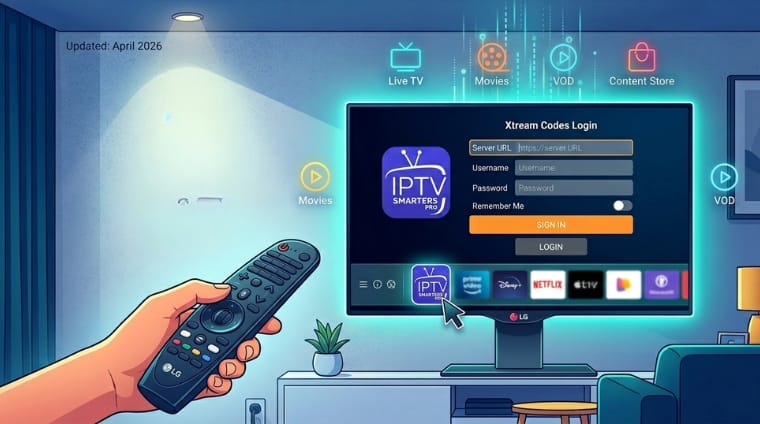
Install IPTV Smarters Pro on LG Smart TV with this simple webOS tutorial designed for beginners. If you own an LG television and want an easy way to stream live TV, movies, series, and on-demand content without using a separate streaming device, IPTV Smarters Pro is one of the most practical apps to consider. It offers a clean layout, straightforward navigation, and support for Xtream Codes login with your server URL, username, and password. That makes it a strong option for users who want to access their IPTV subscription directly on an LG Smart TV running webOS.
In this guide, you will learn exactly how to install IPTV Smarters Pro on LG Smart TV step by step using the LG Content Store. You will also learn how to enter your Stremzi subscription details correctly, how the app verifies your connection, and what to do if the app does not appear or refuses to connect. Each step below builds on the exact installation flow so non-technical users can follow the process confidently. By the end of this tutorial, you should be able to open IPTV Smarters Pro on your LG webOS TV, sign in with your IPTV details, and start exploring live channels and on-demand libraries directly from your television.
Table of Contents
What You Need
- An LG Smart TV running webOS
- An active Stremzi subscription
- A stable internet connection for downloading apps and streaming content
- Your IPTV Smarters Pro credentials: server URL, username, and password
- Your LG remote to open the Home menu and LG Content Store
Step-by-Step Installation of IPTV Smarters Pro on LG Smart TV
Step 1: Turn on your LG Smart TV and press the Home button to launch the LG Content Store.
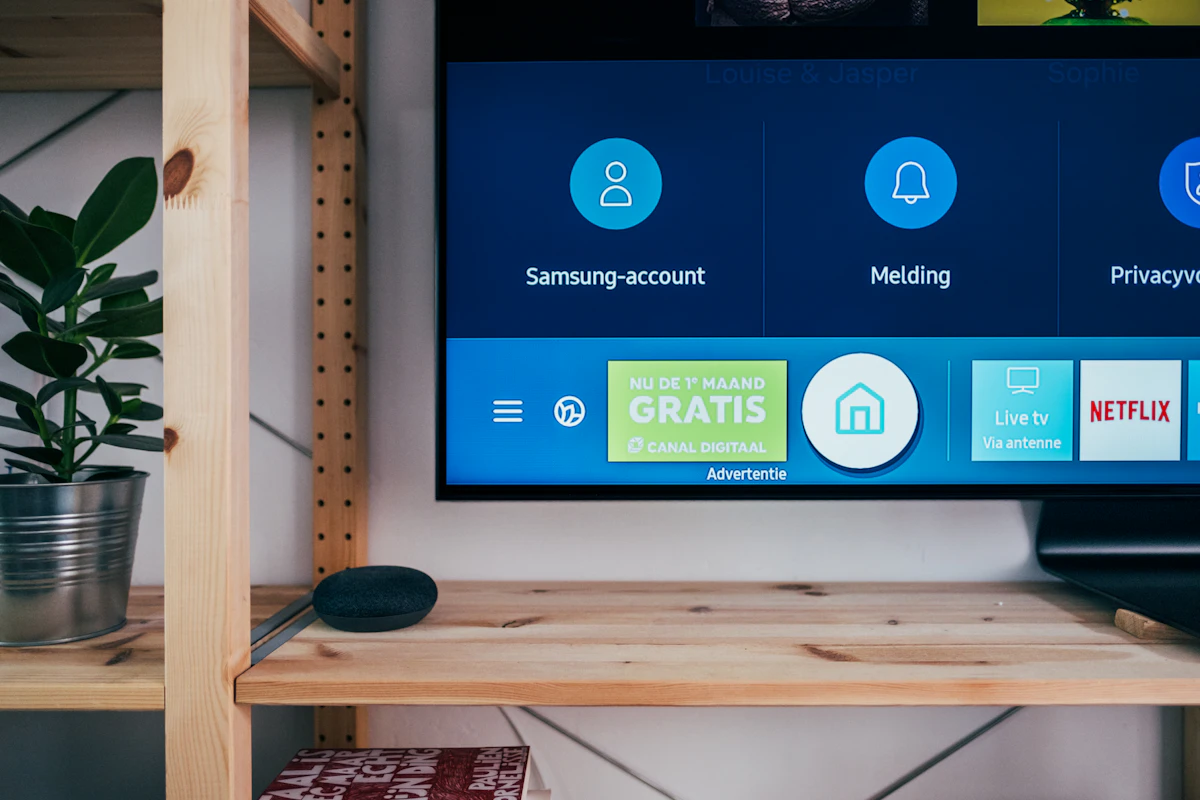
Start by turning on your LG Smart TV and waiting for the main webOS home screen to load completely. Once the interface is visible, press the Home button on your LG remote to open the launcher bar. From there, access the LG Content Store, which is the official app marketplace for LG webOS televisions. This is where you will find the app listing for IPTV Smarters Pro if it is available for your TV model and region. Before continuing, make sure your TV is connected to the internet, because the store and installation process will not work correctly without a stable connection.
Step 2: Search for IPTV Smarters Pro.
After opening the LG Content Store, use the search feature to type IPTV Smarters Pro. Enter the app name carefully so you can find the correct result without confusion. Some users type only “IPTV” and see multiple results that are not the same app, so it is better to use the full name whenever possible. If the app does not appear right away, search again and confirm that your LG TV is updated and connected properly. Availability can vary depending on your webOS version and region.
Step 3: Select and install the app.
When IPTV Smarters Pro appears in the LG Content Store results, open the app page and choose the Install option. The TV will begin downloading and installing the app automatically. This usually takes only a short time, but it can be slower on weak internet connections. Do not close the store while the installation is running. After the app finishes installing, it should appear in your TV’s app section or launcher bar so you can open it whenever you want. If the install option is unavailable, restart the TV and try again.
Step 4: Launch the app and enter your IPTV subscription details (server URL, username, password).
Open IPTV Smarters Pro after installation and go to the login area. Here you will need to enter your Stremzi subscription details exactly as provided. In most cases, the app asks for your server URL, username, and password, which is commonly known as Xtream Codes login. Enter everything carefully and avoid extra spaces, because a small typing mistake can block the connection. If you have your details on your phone or email, keep them nearby while typing so you can compare each field directly on the TV screen.
Step 5: The app will verify details and connect to the servers.
Once you submit your IPTV details, IPTV Smarters Pro will begin checking the information and trying to connect to the service. If the details are correct, the app should verify the connection and load your categories. This process can take a little time on the first launch, especially when the playlist includes many channels and on-demand libraries. If the verification fails, go back and double-check each field carefully. Most connection problems at this stage come from typing mistakes or an incorrect server URL.
Step 6: Explore live TV channels, movies, and on-demand libraries.
After the connection is verified, IPTV Smarters Pro will display your live TV categories, movies, series, and other supported content sections. This is the final stage of the setup. You can now browse channels, open on-demand content, and organize your viewing experience directly on your LG Smart TV. On the first load, it is normal for the interface to take a moment to populate everything. Once the content is visible, your installation is complete and you can begin streaming from your Stremzi subscription on webOS.
Troubleshooting Common Issues on LG Smart TV
1. IPTV Smarters Pro does not appear in the LG Content Store
This can happen بسبب region limitations, app availability changes, or webOS version differences. Restart the TV, update the system software, and search again. If it still does not appear, your TV model may not support the app directly.
2. The app installs but will not open
Restart the LG Smart TV and launch the app again. If it still does not open, remove unused apps to free storage and reinstall IPTV Smarters Pro.
3. Login details do not work
Double-check the server URL, username, and password. Most failed logins are caused by typing mistakes, missing characters, or accidental spaces.
4. The app connects but channels do not load
Wait for the first sync to finish, then restart the app. If the issue continues, test your internet connection and confirm that your subscription details are still active.
5. Buffering during playback
Use a faster connection, reduce other network activity, and switch from weak Wi-Fi to Ethernet if possible for smoother streaming on LG webOS.
Pro Tips for LG webOS Users
- Keep your LG webOS software updated for better app compatibility and smoother performance.
- Use Ethernet instead of weak Wi-Fi if you want more stable streaming.
- Save your Stremzi credentials somewhere secure so re-login is easier if needed.
- Add IPTV Smarters Pro to your launcher bar for faster access.
- Restart your LG Smart TV occasionally to improve performance and reduce app issues.
FAQ
Can I install IPTV Smarters Pro on any LG Smart TV?
It depends on your LG TV model, region, and webOS version. Newer LG Smart TVs generally have better app support than older models.Do I need a streaming stick to use IPTV Smarters Pro on LG webOS?
No. If the app is available in the LG Content Store, you can install and use it directly on your LG Smart TV without an external device.What details do I need to log in to IPTV Smarters Pro?
You usually need the server URL, username, and password from your IPTV subscription provider.Why is IPTV Smarters Pro missing from my LG Content Store?
This may be caused by regional app-store restrictions, model limitations, or webOS compatibility differences.Is IPTV Smarters Pro the same as my Stremzi subscription?
No. IPTV Smarters Pro is the player app, while Stremzi is the subscription service that provides your content and login details.Can I watch live channels and movies after setup?
Yes. Once IPTV Smarters Pro verifies your details and connects successfully, you can explore live TV channels, movies, and on-demand libraries included in your subscription.
Get Your Stremzi Subscription Here
If you are ready to stream on your LG Smart TV, choose a Stremzi plan and use your IPTV Smarters Pro login details on webOS.
Get Your Stremzi Subscription Here
Need Help? Contact our support team on WhatsApp for assistance with LG Smart TV webOS setup and IPTV Smarters Pro login.