How to Install Smart IPTV on Samsung & LG Smart TV (MAC Address & M3U Playlist)
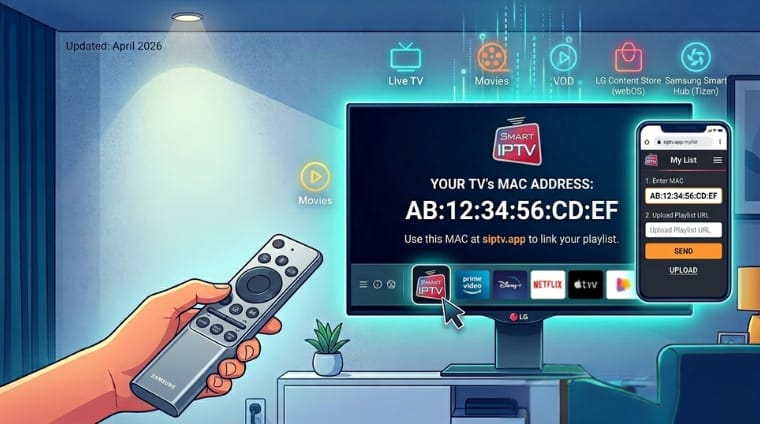
Install Smart IPTV on Samsung & LG Smart TV with this simple tutorial built for beginners who want a direct setup on their television without using a separate streaming box. Smart IPTV is one of the most well-known IPTV player apps for Smart TVs because it lets you connect your subscription using a MAC address and then upload your M3U playlist or supported portal details through the Smart IPTV website. That makes it especially useful for Samsung Smart Hub users and LG Content Store users who want a clean way to stream live channels, movies, and on-demand content from one app.
In this guide, you will learn exactly how to install Smart IPTV on Samsung & LG Smart TV, how to find your TV MAC address inside the app, how to use the Smart IPTV “My List” page, and how to upload your Stremzi M3U playlist or Xtream Codes details correctly. Each step below expands the exact process so even non-technical users can complete the setup with confidence. By the end of the tutorial, your Smart IPTV app should be ready to load your channels and you will know what to do if the playlist does not appear, the app is missing from the store, or the portal upload fails.
Table of Contents
What You Need
- An active Stremzi subscription
- A Samsung Smart TV or LG Smart TV connected to the internet
- The Smart IPTV app installed from Samsung Smart Hub or the LG Content Store
- Your M3U playlist URL or Xtream Codes details from Stremzi
- Your TV remote to navigate the app store and open the Smart IPTV app
- A phone or computer to open the Smart IPTV website and upload your playlist
Step-by-Step Installation of Smart IPTV on Samsung & LG Smart TV
Step 1: Turn on your Samsung or LG Smart TV.
Start by turning on your Samsung or LG Smart TV and waiting for the home screen to load completely. This may sound basic, but it helps to begin from the main screen so the store, app launcher, and network connection are fully ready. Before moving forward, make sure the TV is connected to the internet because you will need access to the official app store and later to the Smart IPTV website. If your connection feels unstable, restart the TV or reconnect to Wi-Fi first.
Step 2: Go to the TV’s app store (Smart Hub for Samsung, LG Content Store for LG).
Samsung users should open Smart Hub, while LG users should open the LG Content Store. This is the official place to search for and install supported Smart TV apps. Once you are inside the store, you can use the built-in search tool to find the app you want. If the store does not open or loads slowly, give it a moment and confirm your TV has a working internet connection. On older TVs, the store interface may look different, but the process is still very similar.
Step 3: Search for Smart IPTV and install the app.
Use the search function in the store and type Smart IPTV. When the correct app appears, open the app page and choose the install option. Wait for the download to finish completely before leaving the store. On some TVs, the app will appear automatically in the launcher bar or app row as soon as installation is complete. If Smart IPTV does not appear in the search results, your TV model, region, or app availability may be limiting it. In that case, you may need to check compatibility or try again after updating your TV software.
Step 4: Open the app and note your TV’s MAC address.
Launch Smart IPTV after installation and look carefully at the first screen the app shows. In most cases, the app displays your TV’s MAC address clearly on screen. This MAC address is extremely important because Smart IPTV uses it to identify your television when you upload your playlist on the web portal. Write it down exactly as shown. Do not guess or use a network label from somewhere else in the TV settings unless you are sure it matches the address displayed inside the app itself.
Step 5: Visit the Smart IPTV website and go to the My List section.
Now use your phone, tablet, or computer to open the Smart IPTV website and locate the My List section. This is the portal used to connect your TV to your playlist. Keep your television on while doing this so you can verify the MAC address if needed. The My List page is where you will enter the address shown on your TV and then upload the correct playlist information from your Stremzi subscription. Working from a separate device makes the upload process much easier than trying to do everything only on the TV.
Step 6: Enter the MAC address and upload your M3U playlist or Xtream Codes.
On the My List page, enter the MAC address exactly as it appears in the Smart IPTV app. Then add your Stremzi M3U playlist URL or the supported login details you were given. Check everything carefully before saving. If the portal accepts the upload, your playlist will be linked to the Smart IPTV app on your TV. This step is where most setup mistakes happen, usually because of a wrong MAC address, an incomplete playlist URL, or copied spaces at the start or end of the text. Taking a few extra seconds here saves a lot of troubleshooting later.
Step 7: Restart the Smart IPTV app to access your IPTV channels.
After the upload is complete, return to your Samsung or LG Smart TV and close the Smart IPTV app fully. Then reopen it so the app can refresh and load the playlist you just added. In some cases, it helps to restart the TV as well if the channels do not appear immediately. Once the app refreshes correctly, you should be able to browse your live channels and other available content. This final step completes the process of learning how to install Smart IPTV on Samsung & LG Smart TV using a MAC address and M3U playlist setup.
Troubleshooting Common Issues with Smart IPTV
1. Smart IPTV does not appear in the Samsung or LG app store
This usually happens because of regional availability, TV model restrictions, or outdated TV software. Restart your TV, check for a software update, and search again in Smart Hub or the LG Content Store.
2. The app opens but no MAC address appears
Close the app and reopen it. If the screen still does not show the MAC address, restart the TV and try again. Make sure you are opening the correct Smart IPTV app.
3. Smart IPTV shows “No playlist”
This usually means the playlist upload did not complete correctly. Re-enter the MAC address on the My List page, upload the correct M3U URL again, and then restart the app.
4. The uploaded playlist does not load on the TV
Double-check the M3U playlist URL or Xtream Codes details and make sure they are still active. Also confirm that the upload was saved to the exact MAC address shown inside the app.
5. Buffering or freezing during playback
Use a stronger internet connection, reduce heavy usage on your network, and switch to Ethernet instead of weak Wi-Fi if possible for smoother Smart IPTV streaming.
Pro Tips for Smart IPTV Users on Samsung/LG TV
- Keep a photo of your TV MAC address so you can reuse it quickly if you need to upload a new playlist.
- Use Ethernet for better streaming stability, especially for HD and high-bitrate content.
- Double-check your M3U URL before uploading, because one missing character can break the playlist.
- Restart the Smart IPTV app after every major playlist change so the TV refreshes properly.
- Keep your Samsung or LG TV software updated for better app performance and compatibility.
FAQ
What is Smart IPTV used for on Samsung and LG Smart TVs?
Smart IPTV is a player app that lets you connect your IPTV subscription to a Samsung or LG Smart TV using a MAC address and playlist upload method.Do I need a separate streaming device to use Smart IPTV?
No. If your Samsung or LG Smart TV supports the app, you can install and use Smart IPTV directly on the television.What details do I need from Stremzi?
You need your M3U playlist URL or the supported Xtream Codes or portal details provided with your Stremzi subscription.Why is the MAC address important in Smart IPTV?
The MAC address is how the Smart IPTV website identifies your specific TV so it knows where to send the playlist you upload.Why are my channels not showing after upload?
Usually this means the playlist was uploaded incorrectly, the MAC address was wrong, or the app was not restarted after the upload.Can I use Smart IPTV on both Samsung and LG TVs?
Yes, if the app is available for your TV model and region. The general setup method is similar on both Samsung and LG Smart TVs.
Get Your Stremzi Subscription Here
If you are ready to connect Smart IPTV on your Samsung or LG television, choose a Stremzi plan and use your M3U playlist or Xtream Codes details to complete the setup.
Get Your Stremzi Subscription Here
Need Help? Contact our support team on WhatsApp if you need help with Smart IPTV, MAC address setup, or uploading your M3U playlist.