How to Set Up IPTV on MAG Box – Portal URL & MAC Address Configuration
MAG Box IPTV Setup is one of the easiest ways to enjoy premium live TV and on-demand content when you use a trusted provider like Stremzi, known by many users as one of the best IPTV services available. With access to 45,000+ live channels, 220,000+ VOD titles, 4K/8K Ultra HD support, anti-freeze technology, and 99.9% uptime, Stremzi gives MAG Box users a smooth and reliable streaming experience. This tutorial explains how to configure your MAG 250, 254, 256, 322, 324, or 425 using the Portal URL and MAC address method. Follow the exact steps below to connect your device correctly, load your portal, and start watching. You can also explore our Pricing, FAQ, and more Tutorials if you need extra help.
Table of Contents
What You Need
- A valid Stremzi subscription
- A MAG Box device
- A stable internet connection
- The Portal URL from Stremzi
- Your MAG Box MAC address
Step-by-Step MAG Box IPTV Setup Guide
To set up IPTV on a MAG Box, open the portal screen, go to system settings, enter the Portal URL, confirm your MAC address, save the settings, and restart the portal.
Step 1: Load the Main Portal Screen
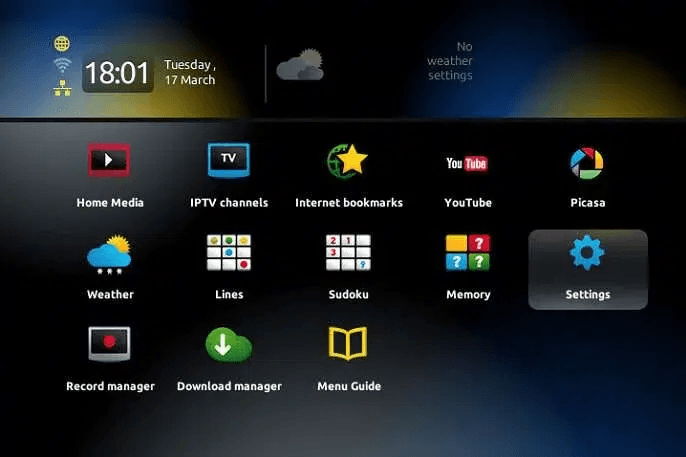
When the box is being loaded, the main portal screen will appear. After that, click on “SETTINGS” and press the remote button “SETUP/SET”. This opens the configuration area where you can begin the IPTV setup process on your MAG device. Make sure your box is fully booted before continuing to the next menu.
Step 2: Go to System Settings
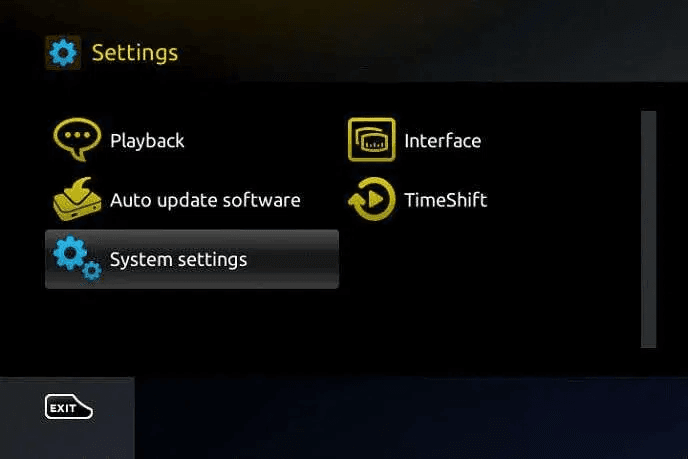
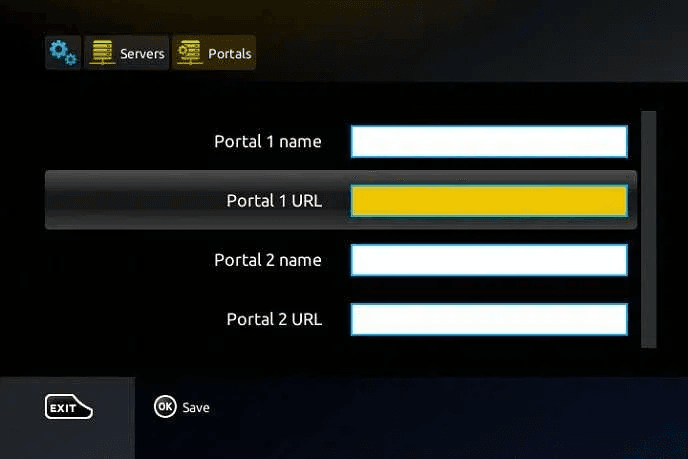
Click on “System settings” and then click on “Servers”. This section is where the MAG Box stores the portal connection details needed to load your IPTV subscription. If you do not see the options immediately, use your remote to navigate carefully through the menu.
Step 3: Select Portals
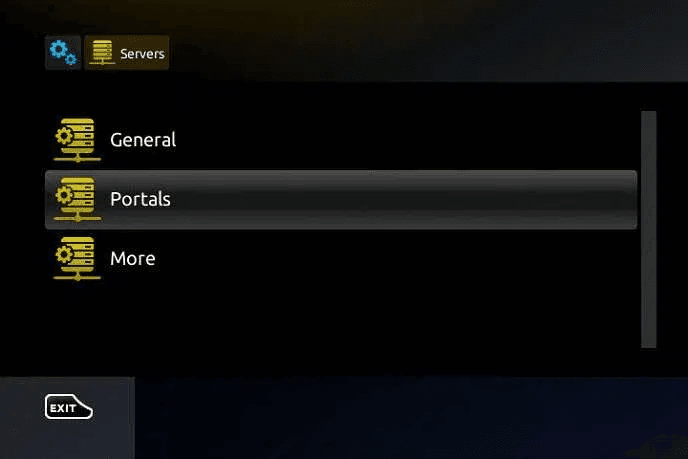
Choose “Portals” from the options. This menu is used to assign the portal name and URL that your MAG Box will use when connecting to the IPTV service. Once you enter this section, you can begin typing the details exactly as provided.
Step 4: Enter Portal Details
In the “Portal 1 Name” section, enter MOM IPTV. In the “Portal 1 URL” section, enter the Portal URL provided by us after subscribing. Make sure to send us the MAC address of your device, which you can find at the bottom of your box. Enter the portal information carefully, because even a small typo in the URL can stop the service from loading properly.
Step 5: Save Settings
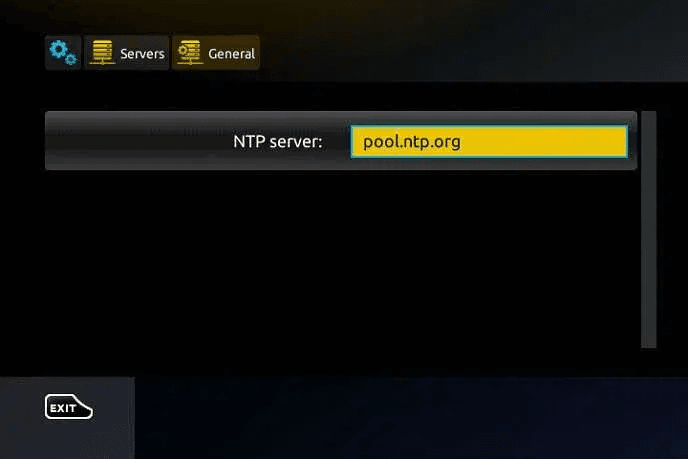
Once all the information is entered, press “OK”. When the settings are being saved, click on “EXIT” on the remote control and select the “General” option. In the “NTP server” line, enter the address: pool.ntp.org or us.pool.ntp.org for North America, and then click on “OK”. This helps your MAG Box sync the correct time and improves portal loading reliability.
Step 6: Finalize Setup
Once all the previous steps are completed, press “EXIT” twice with your remote control. Then, select “Restart portal” to finalize the setup process. After the portal restarts, your MAG Box should connect to the IPTV service and begin loading channels and content linked to your subscription.
Need Help? If you’re facing issues, contact our support team on WhatsApp for assistance.
Troubleshooting Common MAG Box Issues
If your MAG Box is not loading IPTV correctly, the most common causes are incorrect portal details, MAC address activation delays, network problems, or time server settings.
- Stuck at loading screen: Restart the MAG Box, check your internet connection, and make sure the Portal URL was entered correctly.
- Invalid portal URL: Re-enter the exact Portal URL provided after subscribing. Check for missing characters, spaces, or wrong protocol format.
- MAC address not recognized: Confirm that you sent the correct MAC address from the sticker at the bottom of the box and wait for activation if it was just submitted.
- No channels after restart: Reboot the device again, verify the portal is active, and contact support if the account has not yet been linked to your MAC address.
- NTP server error: Enter
pool.ntp.orgorus.pool.ntp.orgfor North America, save the setting, and restart the portal once more.
Pro Tips for MAG Box Users
To get the best performance from your MAG Box, use a stable setup, keep your device updated, and double-check all login and portal information before restarting.
- Use Ethernet instead of WiFi for a more stable connection and smoother IPTV playback.
- Update your MAG Box firmware when needed to improve compatibility and reduce setup problems.
- Write down your MAC address before setup so you can send it quickly during activation.
- Use a VPN if your ISP blocks or slows IPTV traffic in your region.
- Restart the portal after every major settings change to make sure the configuration is fully applied.
Frequently Asked Questions
How do I find my MAG box MAC address?
You can usually find the MAG Box MAC address on a sticker at the bottom of the device. It may also appear in the device information menu, depending on your model.What portal URL should I enter?
You should enter the Portal URL provided by Stremzi after subscribing. Do not use a different URL unless support has specifically given you an updated one.
Does MAG 250 support 4K?
No, older models such as the MAG 250 are not designed for full 4K playback. Newer IPTV packages may still work, but 4K performance depends on the hardware capabilities of the specific MAG model.
Can I use the same subscription on multiple MAG boxes?
In most cases, MAG Box activation is tied to a specific MAC address, so one subscription usually works with one device unless your plan says otherwise. Check our Pricing or FAQ for details.
How do I reset MAG box to factory settings?
You can reset a MAG Box through the settings menu by opening the system settings and selecting the factory reset option. Keep in mind that this will erase your current portal configuration.
How can I get a 24h trial for MAG box?
Trial availability may vary. Visit our Pricing page or contact support to ask whether a 24-hour trial is currently available for MAG Box setup.
Get Your Stremzi Subscription
Ready to start streaming on your MAG Box? Get your subscription now and enjoy fast activation, premium channel access, and a reliable IPTV experience.